Payment Summary Screen
Overview
After completing KYC verification, you'll see the payment summary screen where you can review details and select a payment method.
When This Screen Appears
- Appears after completing all required KYC steps
- Also appears if you've already completed KYC in a previous session
1. Payment Summary Card
Contract Details:
- Contract ID: Your unique contract identifier
- Contract Title: Name of your contract
- Buyer: Your name (from Personal Info step)
- Seller: The seller's name
Financial Information:
- Contract Amount: The base amount of the contract
- You Will Pay: Total amount highlighted in blue (larger font)
2. Payment Methods Section
Below the summary, you'll see the payment options available for this contract.
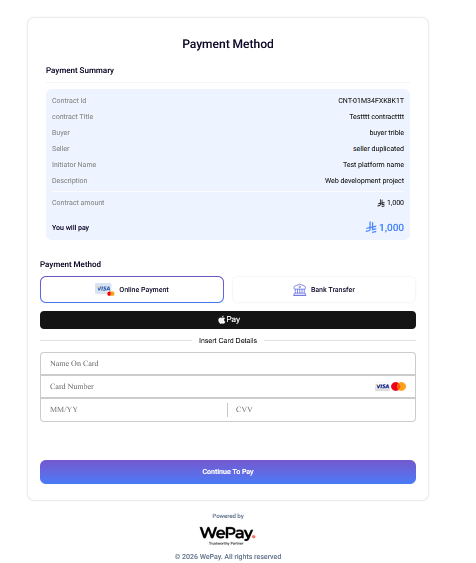
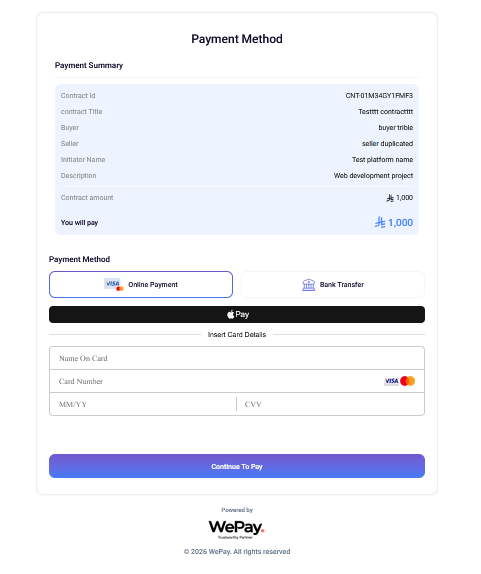
The payment methods shown on the checkout page are configured by WePay for each platform. Depending on the configuration, a buyer may see online payment only, bank transfer only, or both. Contact WePay if you would like a method enabled or disabled for your account.
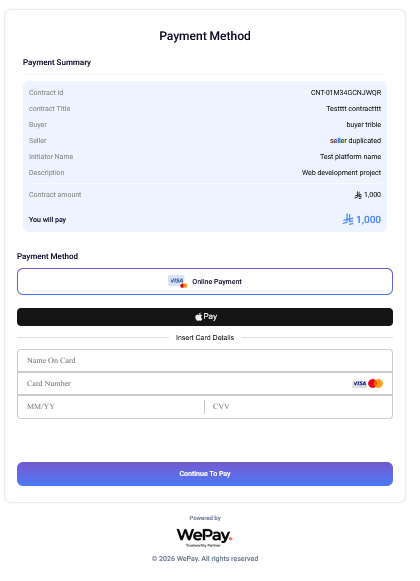
When only one method is enabled
Online payment only — the bank transfer option is not shown.
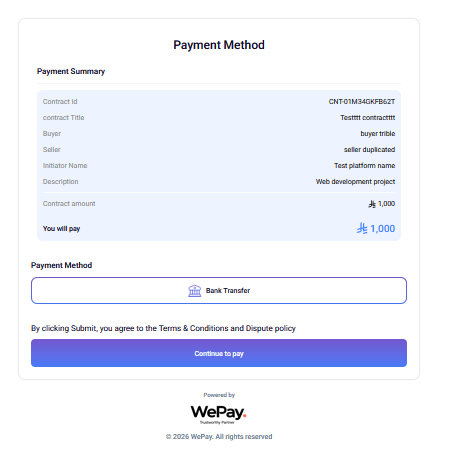
Bank transfer only — the online payment option is not shown.
Online Payment
Pay immediately using:
- Mada — Mada card payments
- Credit / Debit Card — Visa and Mastercard
- Apple Pay — where available
- STC Pay — STC Pay wallet
The buyer is redirected to the payment gateway's secure page, completes the payment, and is returned to the Payment Success screen. The result is immediate.
Bank Transfer
The buyer is shown a virtual IBAN issued for this contract, and transfers the amount from his own bank or banking app.
- The buyer selects Bank Transfer and continues.
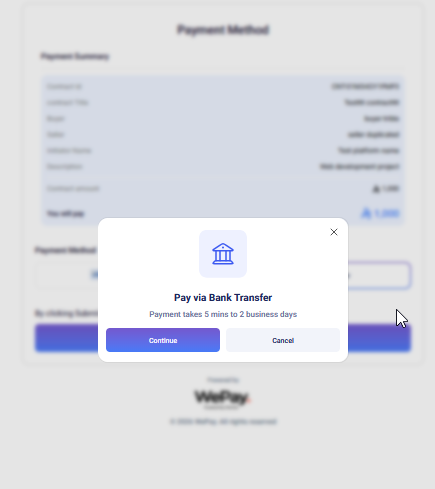
- A confirmation appears, noting that payment takes 5 minutes to 2 business days.
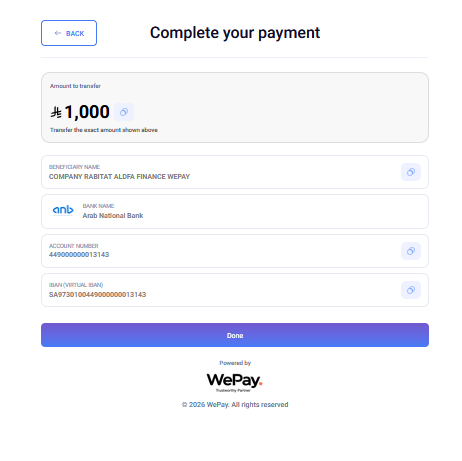
- The Complete your payment screen shows the exact amount to transfer and the account details for this contract: beneficiary name, bank name, account number, and the virtual IBAN. Each value can be copied.
- The buyer makes the transfer from their own bank or banking app.
- The buyer presses Done.
The virtual IBAN is unique to this contract, and WePay identifies the contract from its virtual IBAN, then checks the amount received against the amount due. The buyer should transfer the exact amount shown.
• More than the amount shown: the contract (or milestone) is funded, and WePay automatically creates a refund request for the excess. • Less than the amount shown: the contract (or milestone) stays unpaid, and WePay automatically creates a refund request for the amount received. If the buyer then transfers the remaining amount, the refund request is cancelled and the contract is funded.
You receive a webhook in each case. Learn more
Payment takes 5 minutes to 2 business days, depending on the buyer's bank. The contract status does not change while the transfer is in progress.
WePay sends bank_transfer.initiated when the virtual IBAN is issued to the buyer, and bank_transfer.buyer_acknowledged when the buyer presses Done.
Pressing Done is not a confirmation that the funds arrived. There is no success screen for bank transfer.
Wait for the payment.completed or milestone.payment.completed webhooks before treating the contract/milestone as paid.
How to Proceed
- Review all contract details carefully
- Verify the total amount you'll pay
- Select your preferred payment method
- For online payment: you'll be redirected to the payment gateway's secure page, complete payment there, and be returned to the Payment Success screen
- For bank transfer: transfer the exact amount to the account details shown, then press Done. There is no success screen, because the transfer takes from 5 minutes to 2 business days to arrive